Month-end arrives with a folder of PDFs called download, invoice (2), and scan_017. Opening each document to find the supplier is slow, and a generic filename does little to help the colleague who receives the folder next.
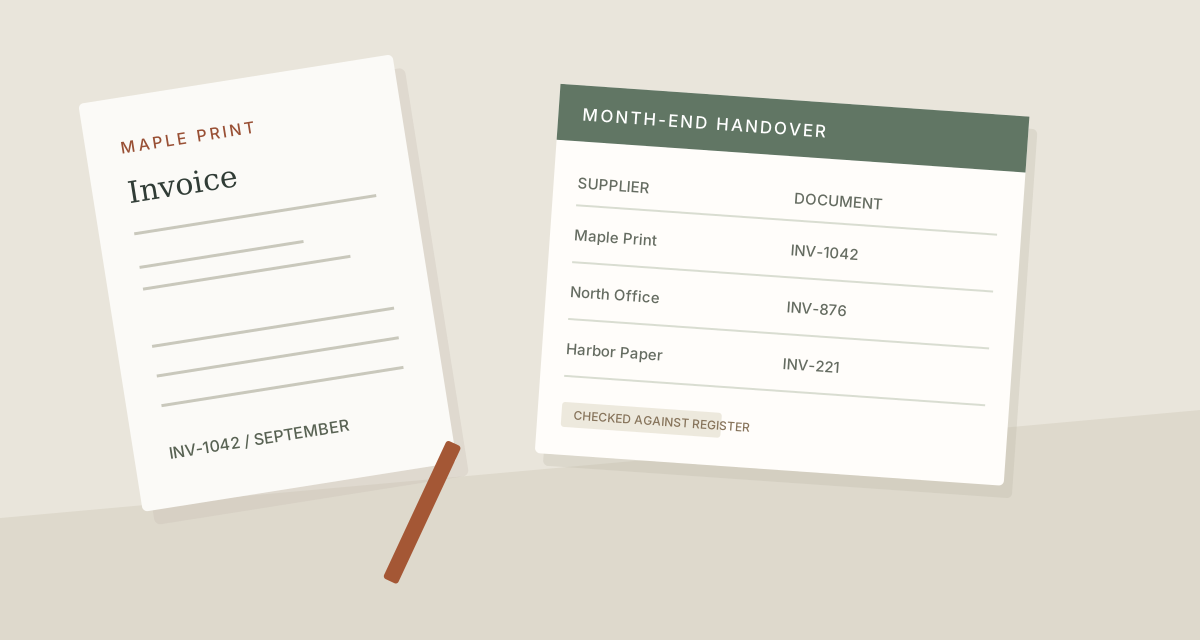
Give each file a predictable name using information you have already checked in the invoice or your invoice register. In this fictional example, the month comes first so an alphabetically sorted folder stays grouped by period.
TreatFiles supplies the file list and applies your prepared names. You supply the supplier codes and invoice numbers; this workflow does not read invoice contents or extract them automatically.
What the names need to say
Use the month to group a reporting period, a consistent supplier label to keep names together, and the invoice number to distinguish documents. Keep a credit-note prefix such as CN when it is part of the document reference. A shared naming rule is more useful than a long name containing every possible detail.
Month_Supplier_InvoiceNumber| Original filename | Proposed filename |
|---|---|
download.pdf | 2026-09_MaplePrint_INV-1042.pdf |
invoice (2).pdf | 2026-09_NorthOffice_INV-876.pdf |
scan_017.pdf | 2026-09_HarborPaper_INV-221.pdf |
attachment.pdf | 2026-09_MaplePrint_CN-1042.pdf |
The examples show complete filenames. In TreatFiles’ New File/Folder Name column, normally enter the base name only; the extension is stored separately.
Make the handover easier
Set aside one reporting period
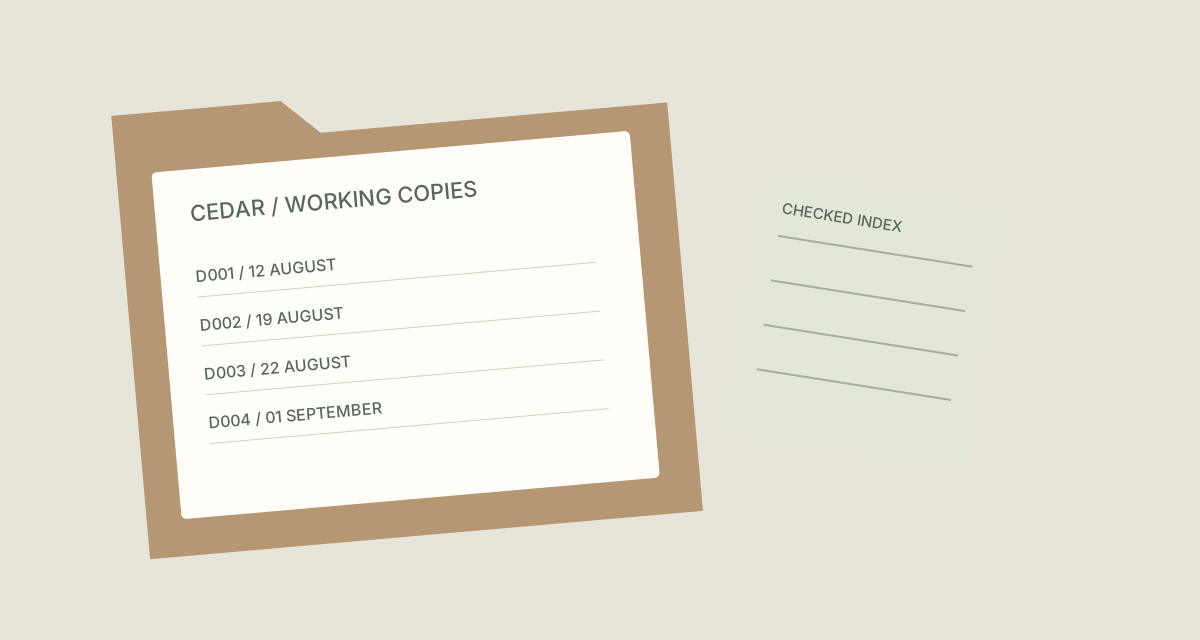
Work with a copied folder of the PDFs you intend to hand over. Decide whether a file belongs to this period from your checked records, rather than its download date. Keep the original folder until you have checked the result.
Export a rename-ready file list
In TreatFiles, select Rename mode before generating the list. Add the copied folder and create an XLSX or CSV export. Keep its existing rows and identifying columns intact.
Match each file to the naming plan
Open the export in Excel. Match each current filename to your checked invoice register. Put the proposed base name in the New File/Folder Name column. For this example, enter 2026-09_MaplePrint_INV-1042 without adding .pdf; TreatFiles stores the extension separately.
Check exceptions before importing
Look for repeated supplier-and-invoice combinations, unreadable invoice numbers, and credit notes. Do not give two files in the same folder the same target name. Use a deliberate suffix for distinct supporting documents, rather than treating every repeated reference as a duplicate.
Apply the names and check the handover
Save the exported sheet, then upload or drag it back into TreatFiles. Review the proposed names before running the rename. Check the renamed PDFs against the register, and keep the original export with the handover notes.
If you need the application controls alongside the example, keep the TreatFiles renaming guide or FAQ and user guide open as a reference.
Related tasks: dataset exports and case document copies.
The exceptions matter
Dates need a shared meaning
A download date, invoice date, and accounting period can differ. Agree which one belongs in the filename.
A filename is not a reconciliation
Renaming does not verify invoice values, determine tax treatment, or confirm payment. Those checks remain in your accounting process.
Keep document references distinct
Invoice INV-1042 and credit note CN-1042 should not become the same filename.
A sample to work from
The Invoice files tab in this workbook contains the example above. Adapt the idea to your own files, or share it with the people who agree your naming convention.
Download the sample workbook (.xlsx) ↓This is a planning worksheet, not a TreatFiles import file. Generate a rename-ready export in the app, then put your chosen base names into its New File/Folder Name column.
Questions you might have
Can TreatFiles find supplier names inside PDFs?
This example uses supplier information you enter after checking the documents. It does not depend on PDF reading, OCR, or invoice extraction.
Should I put .pdf in the new-name column?
Normally no. The app documentation says extensions are stored separately. Keep the existing extension and put only the intended base name in the new-name column.
Can I upload the sample workbook directly?
No. It is a planning example with fictional names. Generate your own rename export in TreatFiles and edit its New File/Folder Name column.
About the tool used here. TreatFiles lists files, exports them to a spreadsheet, and applies the names you prepare. Explore TreatFiles or find it on Microsoft Store ↗.