A working folder assembled from scans and downloaded attachments rarely arrives with consistent names. A reviewer looking at scan001 cannot tell which indexed document it represents. Renaming working copies can make navigation clearer, provided the mapping to the source records is retained.
Use a checked document index to name a fictional Cedar case’s working-copy PDFs with a case code, document date and document identifier. Keep source and evidence collections outside this exercise.
TreatFiles applies prepared filenames. It does not determine a document’s date, assess legal significance, create a chain-of-custody record or establish compliance.
What the names need to say
A case code limits ambiguity across matters. The document date comes from the checked index, and a stable identifier connects the file back to that index. Where names may be shared outside the team, choose labels that do not unnecessarily expose personal details.
CaseCode_Date_Index| Original filename | Proposed filename |
|---|---|
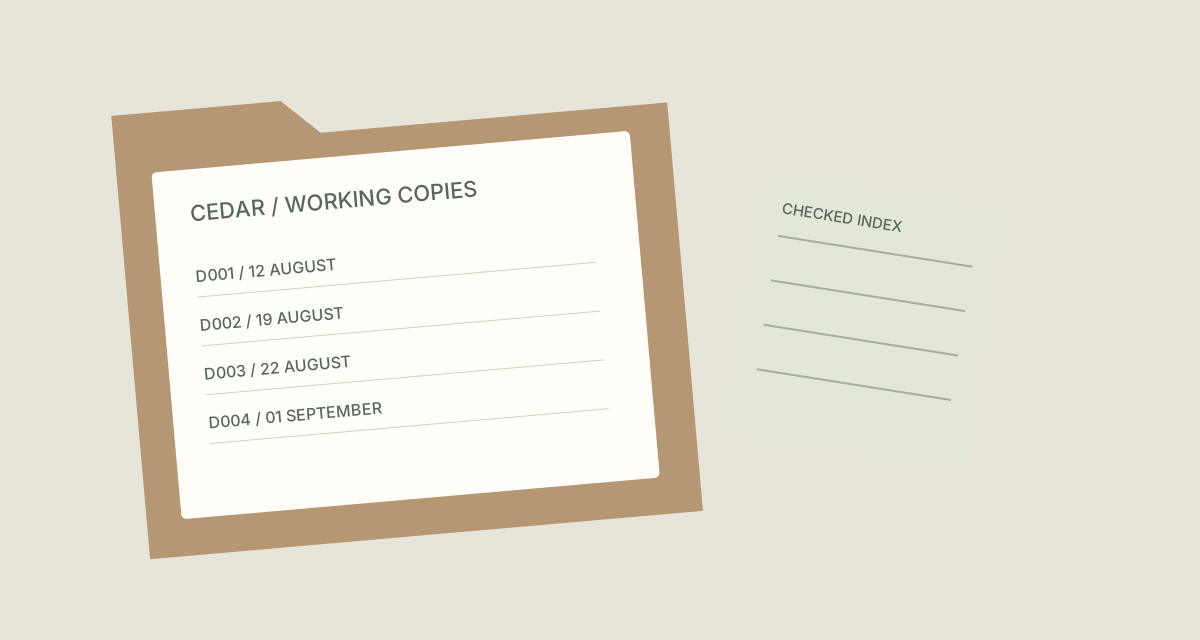
scan001.pdf | CEDAR_2026-08-12_D001.pdf |
email attachment.pdf | CEDAR_2026-08-19_D002.pdf |
document-final.pdf | CEDAR_2026-08-22_D003.pdf |
scan002.pdf | CEDAR_2026-09-01_D004.pdf |
The examples show complete filenames. In TreatFiles’ New File/Folder Name column, normally enter the base name only; the extension is stored separately.
Connect working copies to the index
Separate working copies from source records
Create a review folder according to your team’s document-handling process. Leave source records and any managed evidence collection unchanged.
Export a list of the working PDFs
Select Rename mode in TreatFiles and export the working-copy list to XLSX or CSV. Preserve the exported identifying columns.
Use the checked index for the names
Match each PDF to its case code, document date and stable index identifier. Put the base name in New File/Folder Name, leaving the .pdf extension separate.
Resolve uncertain or repeated records
Do not invent a date for an undated document or give two records the same identifier. Resolve uncertain mappings against the index before applying names.
Rename and retain the mapping
Review the edited file list in TreatFiles and apply the rename. Check that each output still maps to its index entry and keep the old-to-new list with the working-folder notes.
If you need the application controls alongside the example, keep the TreatFiles renaming guide or FAQ and user guide open as a reference.
Related tasks: invoice files and project handovers.
The exceptions matter
A tidy filename does not prove provenance
Retain the source-reference information your team needs. This workflow is a navigation aid for working copies.
A file timestamp may not be the document date
Use the date confirmed in the working index; handle undated material explicitly.
Avoid silently merging duplicate-looking documents
Two scans may represent different records. Investigate them before assigning names or removing anything.
A sample to work from
The Case document copies tab in this workbook contains the example above. Adapt the idea to your own files, or share it with the people who agree your naming convention.
Download the sample workbook (.xlsx) ↓This is a planning worksheet, not a TreatFiles import file. Generate a rename-ready export in the app, then put your chosen base names into its New File/Folder Name column.
Questions you might have
Should I rename original evidence files?
This guide is limited to working copies. Follow your organization’s process for original or managed records.
Can TreatFiles identify a document’s legal category?
The classifications and dates come from your checked index. This example does not assume document analysis.
Is this a legal records standard?
No. The fictional pattern illustrates a naming workflow; it does not replace the requirements of a matter or organization.
About the tool used here. TreatFiles lists files, exports them to a spreadsheet, and applies the names you prepare. Explore TreatFiles or find it on Microsoft Store ↗.