A handover recipient needs more than a folder named final. They need to know what was delivered, which version is intended and whether the set matches the agreed deliverables. A file inventory makes that conversation more concrete before anyone renames the documents.
Start with an inventory of a fictional Cedar project’s four PDF deliverables, then improve filenames where the team agrees that doing so will make the handover clearer.
TreatFiles lists existing files and applies names you prepare. It does not confirm that a document is approved, that a deliverable is complete or that a project has been accepted.
What the names need to say
The project code identifies the delivery; a readable document label explains its role; revision distinguishes it from another issue. Use the version recorded for each deliverable rather than assigning one common revision to everything in the folder.
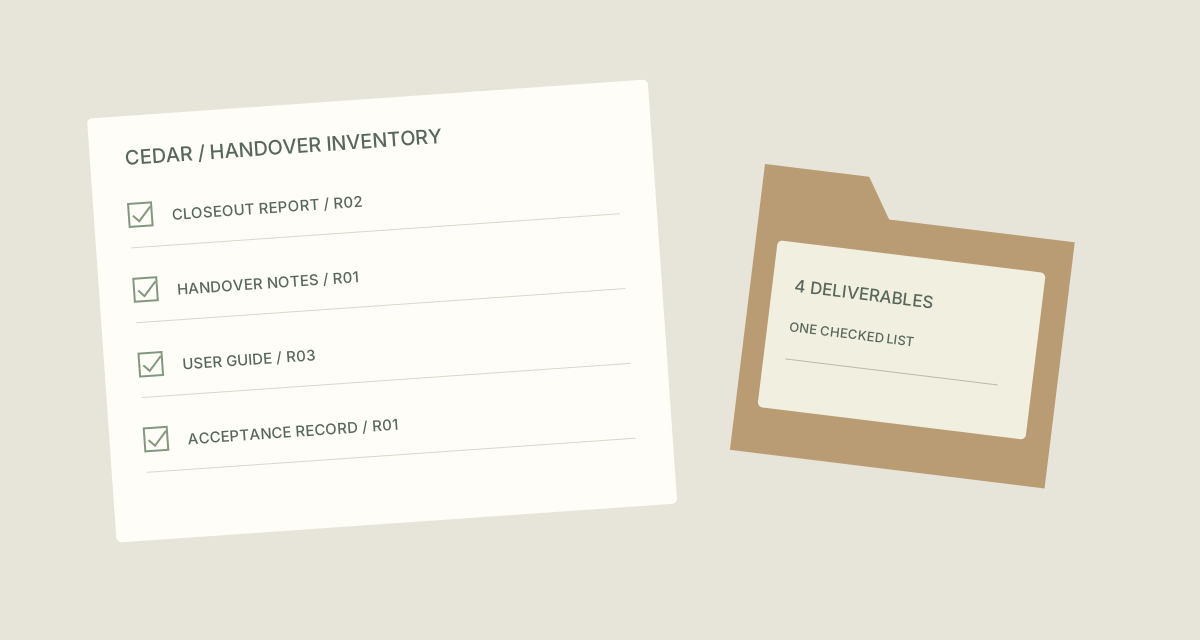
Project_Deliverable_Revision| Original filename | Proposed filename |
|---|---|
final report.pdf | CEDAR_CloseoutReport_R02.pdf |
notes new.pdf | CEDAR_HandoverNotes_R01.pdf |
manual.pdf | CEDAR_UserGuide_R03.pdf |
acceptance final.pdf | CEDAR_AcceptanceRecord_R01.pdf |
The examples show complete filenames. In TreatFiles’ New File/Folder Name column, normally enter the base name only; the extension is stored separately.
Check the handover before changing the names
Create the inventory first
List the intended handover folder in TreatFiles and export a file list. Compare it with the agreed deliverable list, recording missing or unexpected items outside the app as needed.
Agree which filenames should change
Use a delivery copy and confirm which names can be changed. Links in documents, review systems or handover instructions may depend on existing filenames.
Prepare a rename-mode export
Select Rename mode and generate the XLSX or CSV naming export. Map checked deliverable names and individual revisions into New File/Folder Name while preserving identifying columns.
Review the recipient’s perspective
Check for vague labels, repeated target names and misleading final suffixes. Confirm that the acceptance record and user guide are the intended documents, rather than relying on their old names.
Rename and regenerate the inventory
Re-import the naming export, review and rename. Generate a fresh inventory of the delivery copy so the recipient’s list matches the actual filenames, and retain the old-to-new mapping.
If you need the application controls alongside the example, keep the TreatFiles renaming guide or FAQ and user guide open as a reference.
Related tasks: drawing exports and release artifacts.
The exceptions matter
An inventory is not a completeness certificate
Compare the list with the agreed deliverables. A directory listing cannot decide whether the project requirements were met.
Change references with the files
A renamed PDF can leave a link or handover note pointing at the old name. Review those references.
Each document may have its own revision
Do not label an unchanged guide as R02 simply because the closeout report advanced to R02.
A sample to work from
The Project handovers tab in this workbook contains the example above. Adapt the idea to your own files, or share it with the people who agree your naming convention.
Download the sample workbook (.xlsx) ↓This is a planning worksheet, not a TreatFiles import file. Generate a rename-ready export in the app, then put your chosen base names into its New File/Folder Name column.
Questions you might have
Can I use TreatFiles only to make the inventory?
Yes. Listing and exporting the folder can be useful even if you decide to keep every filename unchanged.
Does the export confirm approval status?
Approval information must come from the project’s checked records. It is not inferred by this workflow.
Why generate another list after renaming?
The recipient needs an inventory that matches the delivered names, while the retained mapping explains what changed.
About the tool used here. TreatFiles lists files, exports them to a spreadsheet, and applies the names you prepare. Explore TreatFiles or find it on Microsoft Store ↗.