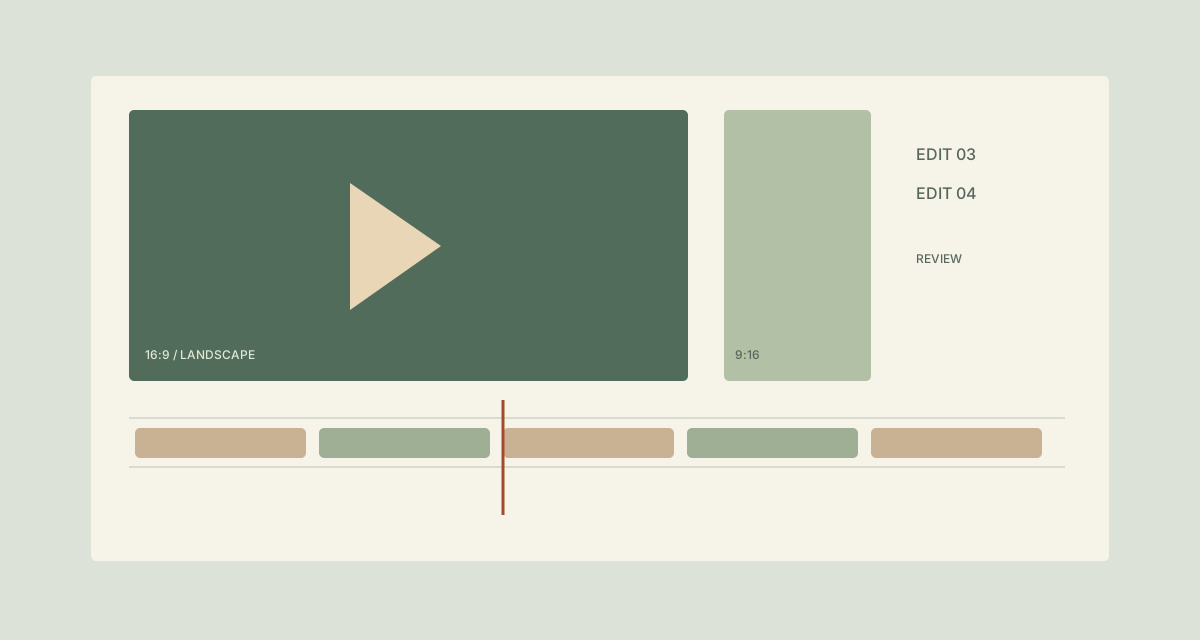
A review conversation becomes harder when feedback refers to final review.mp4 but another person has opened review new.mp4. Add landscape and vertical cuts, and one informal naming habit turns into several ways to misunderstand which export was reviewed.
Name copied MP4 review exports with a fictional project code, aspect-ratio label and checked edit version. The sample deliberately contains two formats from each of two edit versions.
TreatFiles renames exports. It does not inspect frame dimensions, convert aspect ratios, render video or identify which edit is approved.
What the names need to say
Project connects the file to the job, Format identifies the intended frame, and EditVersion distinguishes review rounds. A format label should describe the actual export; the filename cannot turn a landscape video into a vertical one.
Project_Format_EditVersion| Original filename | Proposed filename |
|---|---|
review.mp4 | JuniperLaunch_16x9_Edit03.mp4 |
review_vertical.mp4 | JuniperLaunch_9x16_Edit03.mp4 |
review new.mp4 | JuniperLaunch_16x9_Edit04.mp4 |
final review.mp4 | JuniperLaunch_9x16_Edit04.mp4 |
The examples show complete filenames. In TreatFiles’ New File/Folder Name column, normally enter the base name only; the extension is stored separately.
Separate the review versions and formats
Check the export notes
Match each review file to its project, actual format and edit version in the editing or review process. Make a separate delivery copy.
Generate a rename-ready list
In TreatFiles, select Rename mode and export the copied MP4 folder to XLSX or CSV.
Populate the format and version names
Enter checked base names in New File/Folder Name. Use one convention for versions rather than mixing v4, new and final.
Keep review history understandable
Ensure Edit03 and Edit04 are not assigned the same target name. Where both versions will be shared, include a short note describing which is the current review round.
Rename and verify playback references
Import the edited list, review and rename. Open the files to confirm that their labels match the exports, and update any delivery notes referring to the old names.
If you need the application controls alongside the example, keep the TreatFiles renaming guide or FAQ and user guide open as a reference.
Related tasks: audio stems and project handovers.
The exceptions matter
Labels do not encode or crop video
Resolution, aspect ratio and codecs must be checked or changed in the appropriate media tools.
Do not rename editing-project media in place
Timeline links can rely on existing filenames. This walkthrough concerns review exports.
Approval is separate from version numbering
Edit04 may still be a draft. Keep approval decisions in your review process rather than assuming the highest number is approved.
A sample to work from
The Video review exports tab in this workbook contains the example above. Adapt the idea to your own files, or share it with the people who agree your naming convention.
Download the sample workbook (.xlsx) ↓This is a planning worksheet, not a TreatFiles import file. Generate a rename-ready export in the app, then put your chosen base names into its New File/Folder Name column.
Questions you might have
Can I replace MP4 with MOV in the filename?
An extension change does not convert the video container. Use the correct export or conversion tool.
Does TreatFiles read the frame size?
This example uses export information checked by the editor; it does not assume media inspection.
Should I delete the earlier review after renaming?
This guide does not delete review history. Follow the project’s retention and review process.
About the tool used here. TreatFiles lists files, exports them to a spreadsheet, and applies the names you prepare. Explore TreatFiles or find it on Microsoft Store ↗.