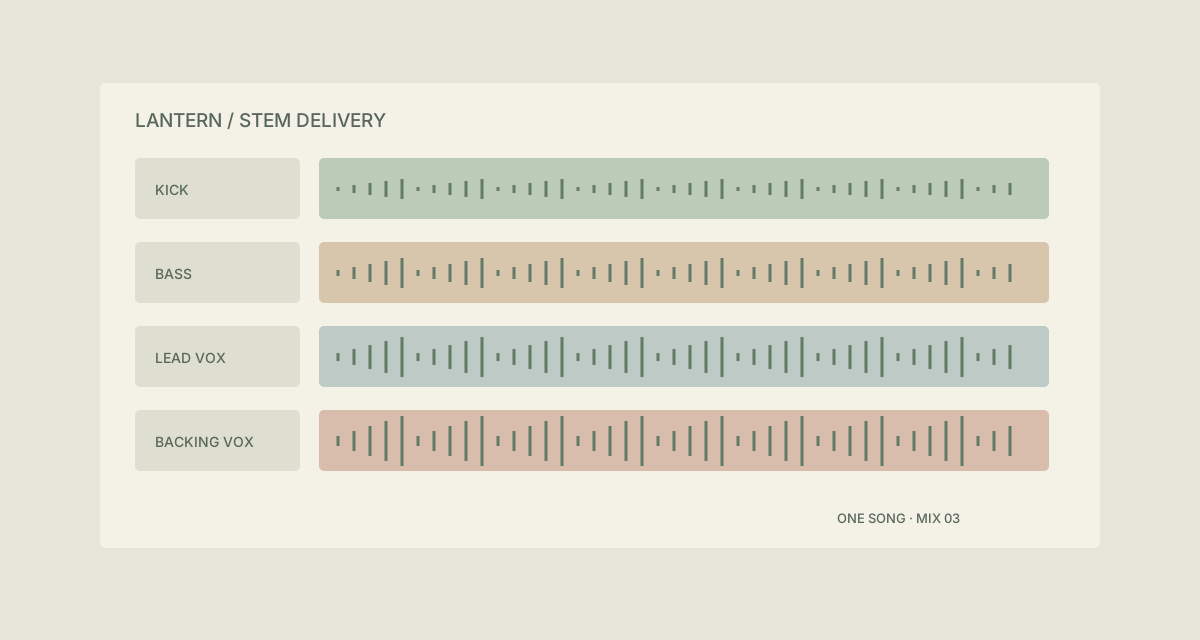
The session makes sense on your screen: the kick is on track one and the lead vocal is bright blue. The exported WAV folder loses those visual cues. A collaborator receiving track_01 and Vox final must ask which song, which part and which version they belong to.
Prepare a delivery copy of the exported stems with a short song identifier, an agreed part name and a consistent mix version. The fictional Lantern song uses four WAV files from one delivery.
This is a filename workflow for exported audio. TreatFiles does not inspect the sound, identify instruments, align stems or change sample rates.
What the names need to say
Song identifies the piece, Part distinguishes the role of each file, and Version keeps revisions separate. If the engineer expects track numbers or a different convention, agree that first. A descriptive label is only useful when the recipient understands it.
Song_Part_Version| Original filename | Proposed filename |
|---|---|
track_01.wav | Lantern_Kick_Mix03.wav |
track_02.wav | Lantern_Bass_Mix03.wav |
Vox final.wav | Lantern_LeadVox_Mix03.wav |
track_04.wav | Lantern_BackingVox_Mix03.wav |
The examples show complete filenames. In TreatFiles’ New File/Folder Name column, normally enter the base name only; the extension is stored separately.
Prepare the exported stems for another pair of ears
Separate the delivery from the session
Export the agreed stems from your audio software, then make a delivery copy. Keep session media in place so renaming does not break project references.
Build a rename-ready export
Select Rename mode in TreatFiles and list the delivery folder. Export to XLSX or CSV, retaining the identifying columns the application supplies.
Match each stem to its session role
Check the exports against your session notes and put the intended base names into New File/Folder Name. Use LeadVox and BackingVox consistently; do not assign roles by guessing from file size.
Review versions as a group
Check that all four files belong to Mix03. If both dry and processed versions are included, distinguish them explicitly with _Dry or _FX. A different suffix should mean a different deliverable.
Rename and audition the handover
Bring the edited export back into TreatFiles, review it and apply the rename. Audition the delivered set in the intended audio workflow and retain the original-to-new filename mapping.
If you need the application controls alongside the example, keep the TreatFiles renaming guide or FAQ and user guide open as a reference.
Related tasks: photo deliveries and video review exports.
The exceptions matter
Names do not align audio
Common start positions and matching sample rates must be checked in the audio application. Renaming cannot establish either.
Keep session references intact
Work on exports rather than files still referenced by a live recording session.
Avoid ambiguous final labels
A version agreed with the recipient is clearer than final, final2 or really-final.
A sample to work from
The Audio stems tab in this workbook contains the example above. Adapt the idea to your own files, or share it with the people who agree your naming convention.
Download the sample workbook (.xlsx) ↓This is a planning worksheet, not a TreatFiles import file. Generate a rename-ready export in the app, then put your chosen base names into its New File/Folder Name column.
Questions you might have
Does TreatFiles convert WAV to MP3?
This example changes filenames only. Changing an extension does not convert audio.
Can the instrument names be detected automatically?
The part labels come from your session notes. This guide does not assume audio recognition.
Should I rename takes before editing?
This walkthrough concerns a delivery copy after export. Session-managed files need to be handled within the audio application’s own workflow.
About the tool used here. TreatFiles lists files, exports them to a spreadsheet, and applies the names you prepare. Explore TreatFiles or find it on Microsoft Store ↗.