A property’s final photos can look obvious in a photographer’s contact sheet and anonymous in an email attachment folder. The person preparing the listing may not have visited the property and cannot reliably identify every room from an unexplained image number.
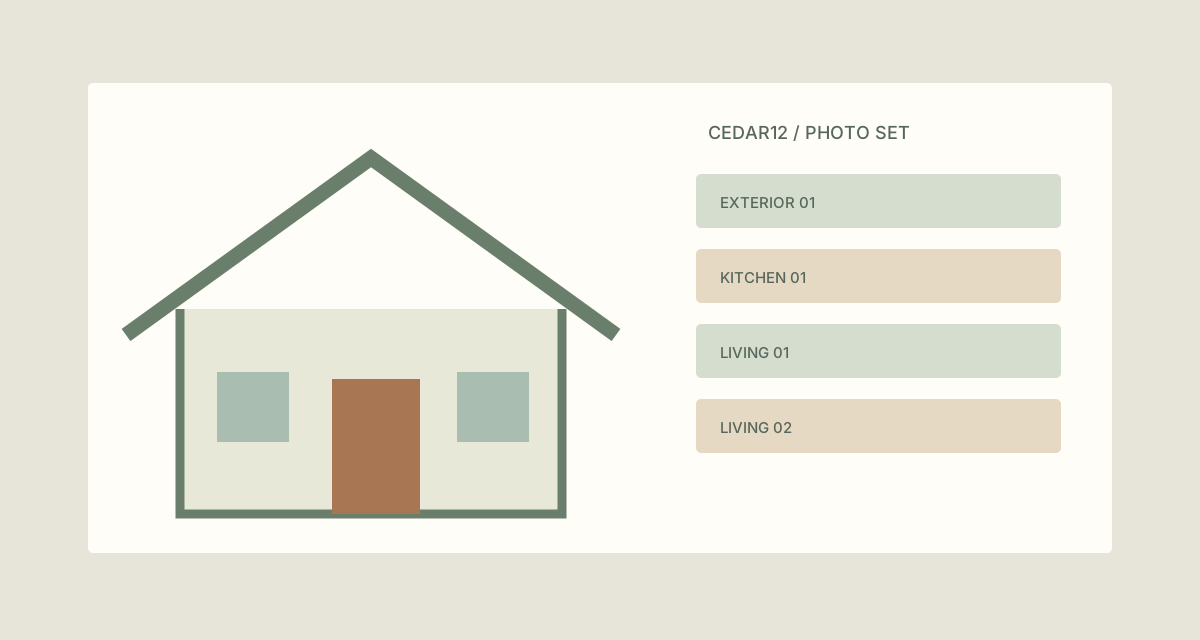
Prepare a fictional Cedar12 listing’s approved delivery JPEGs with a property code, checked room label and a sequence within each room. The two living-room views deliberately share a room label but have different sequence numbers.
TreatFiles does not recognize rooms or decide which photos are approved for marketing. Those choices come from the checked delivery list.
What the names need to say
A listing code distinguishes deliveries from different properties without requiring a full address in every name. Room labels help the recipient select images. Per-room numbering preserves distinctions when several photographs show the same space.
ListingCode_Room_Sequence| Original filename | Proposed filename |
|---|---|
IMG_6321.jpg | CEDAR12_Exterior_01.jpg |
IMG_6340.jpg | CEDAR12_Kitchen_01.jpg |
IMG_6355.jpg | CEDAR12_Living_01.jpg |
IMG_6362.jpg | CEDAR12_Living_02.jpg |
The examples show complete filenames. In TreatFiles’ New File/Folder Name column, normally enter the base name only; the extension is stored separately.
Prepare the property’s delivery set
Collect approved delivery exports
Work from copied final JPEGs and a checked contact sheet or shot list. Keep unselected photos and camera originals outside this folder.
List the set in Rename mode
Export the copied folder to XLSX or CSV from TreatFiles, preserving the identifying columns.
Map the room labels
Match each old filename to a room or view using the shot list. Enter the intended base name in New File/Folder Name. Use agreed labels such as Living rather than alternating LivingRoom, Lounge and Sitting.
Review repeated rooms and property codes
Check that every photo belongs to Cedar12 and that repeated room labels have unique sequence numbers. Do not infer rooms solely from the order files were exported.
Rename and review with the delivery list
Import the edited sheet into TreatFiles, review it and rename. Browse the results against the contact sheet before passing the folder to the marketing team.
If you need the application controls alongside the example, keep the TreatFiles renaming guide or FAQ and user guide open as a reference.
Related tasks: photo deliveries and design exports.
The exceptions matter
A filename is not a listing description
Room labels must describe the checked photograph and do not establish property features or dimensions.
Property codes should be deliberate
Use the delivery code agreed with your team rather than putting unnecessary occupant information in filenames.
Portal filenames can have their own rules
Check the destination’s actual upload requirements before finalizing a naming convention.
A sample to work from
The Property photo sets tab in this workbook contains the example above. Adapt the idea to your own files, or share it with the people who agree your naming convention.
Download the sample workbook (.xlsx) ↓This is a planning worksheet, not a TreatFiles import file. Generate a rename-ready export in the app, then put your chosen base names into its New File/Folder Name column.
Questions you might have
Can TreatFiles tell which room is pictured?
This example uses labels from a checked shot list. It does not assume image recognition.
Should every photo start at 01?
The example restarts numbering for each room. Use a property-wide sequence instead if that is clearer for your recipient.
Does this set the order on a property portal?
Not necessarily. A portal may order uploaded images independently. Check its ordering controls after upload.
About the tool used here. TreatFiles lists files, exports them to a spreadsheet, and applies the names you prepare. Explore TreatFiles or find it on Microsoft Store ↗.